General Settings
The General Settings panel is the command center of your add-on. This is where you activate the global trigger that brings your workflows to life.
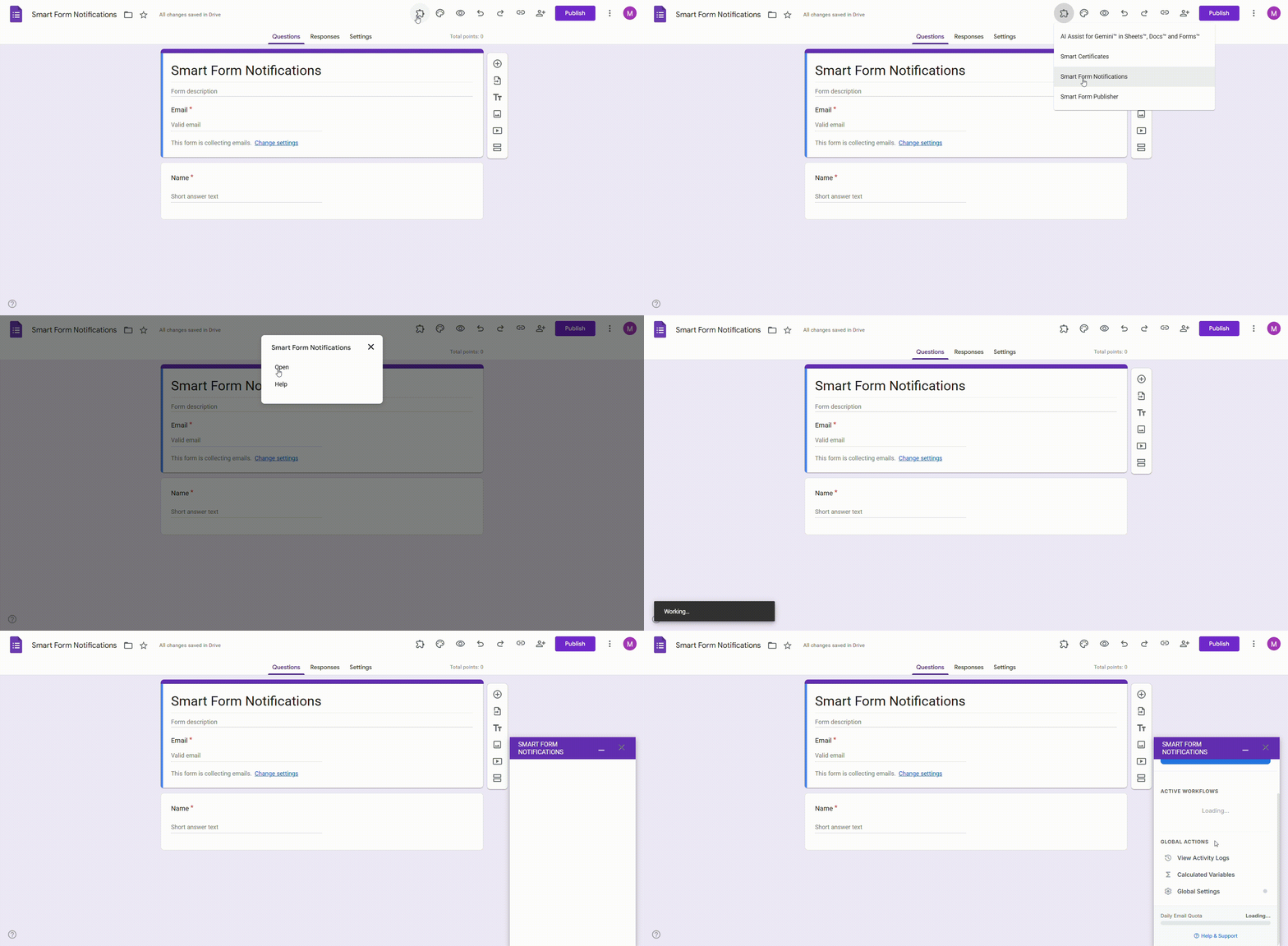
Accessing Global Controls
- 1
Open the Smart Form Notifications sidebar.
- 2
Scroll down to the 'Global Actions' section.
- 3
Click on the 'Global Settings' button.
1. Form Automation Trigger
The most critical setting is the Active Status toggle. This connects your form to our automation engine.
OFF (Inactive)
No workflows will run. Use this to temporarily pause all notifications without losing your setup.
ON (Active)
The system is 'listening'. Every submission will be evaluated against your active workflows.
2. Global Execution Status
Once toggled ON, the status indicator confirms the internal Google hook is established.
If you see a red warning, simply toggle the status OFF and back ON to refresh the internal connection.
Reliability & Logs
Understanding your execution status and email quotas is essential for maintaining professional automation. Watch our guide on how to monitor your global system logs.
Video: Monitoring Reliability and Execution Logs
Visual Guide: Global Actions
Finding the settings menu in the sidebar.
3. Account Tiers
Free Tier
Limited to 1 active workflow per form.
Pro Tier
Manage unlimited workflows from a single form dashboard.
4. Error Tracking
Configure your "Error Notification" email to receive instant alerts if a workflow fails to execute (e.g., if a file attachment fails or your quota is hit). Stay proactive by keeping this setting updated.