Installation Guide
Follow these simple steps to install Smart Form Notifications and start automating your email alerts directly from Google Forms.
Step 1: Installation
Smart Form Notifications
Official Google Workspace Marketplace listing. Enterprise-grade automation for Google Forms with over 1,000,000+ installs worldwide.
Step 2: Authorize Permissions
On the authorization screen, click Continue to grant the required access. Select your preferred Google Account and click "Allow" to enable the automation engine.
Why permissions?
The add-on requires access to your Google Forms and Gmail to read submissions and send alerts on your behalf.
Privacy First
Your data remains secure. Form responses are processed within your Workspace and are never stored on our servers.
Step 3: Launch Add-on
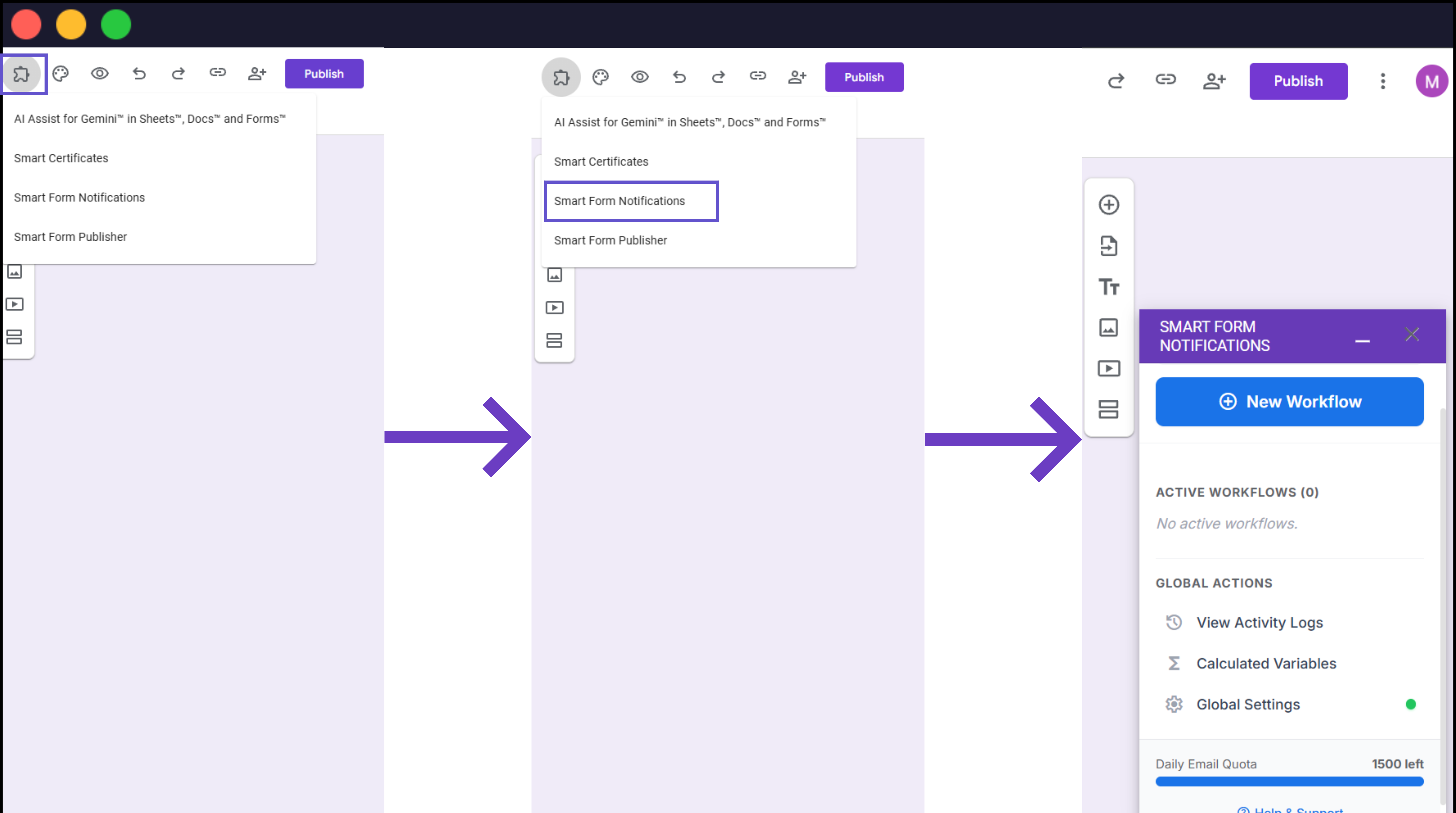
Open any Google Form to access the configuration sidebar:
- Click the puzzle icon (Add-ons menu) in the top header bar.
- Choose Smart Form Notifications from the dropdown list.
- Click Open to reveal the setup sidebar on the right.
Troubleshooting: Multiple Accounts
If the sidebar fails to load or appears blank, it is usually because you are logged into multiple Google Accounts in the same browser.
Video Walkthrough
Prefer a visual guide? Watch our step-by-step setup video.
Video: How to Install & Activate Smart Form Notifications