Opening the Add-on Sidebar
Once your form is prepared and your template design is ready, you need to access the configuration interface to finalize your automation.
Step-by-Step Launch
Locate the Add-ons Menu
Click the puzzle icon located in the top right header bar of your Google Form window.
Select the App
From the dropdown list, choose Smart Form Notifications.
Launch the Sidebar
Click Open (or Get Started) from the sub-menu that appears.
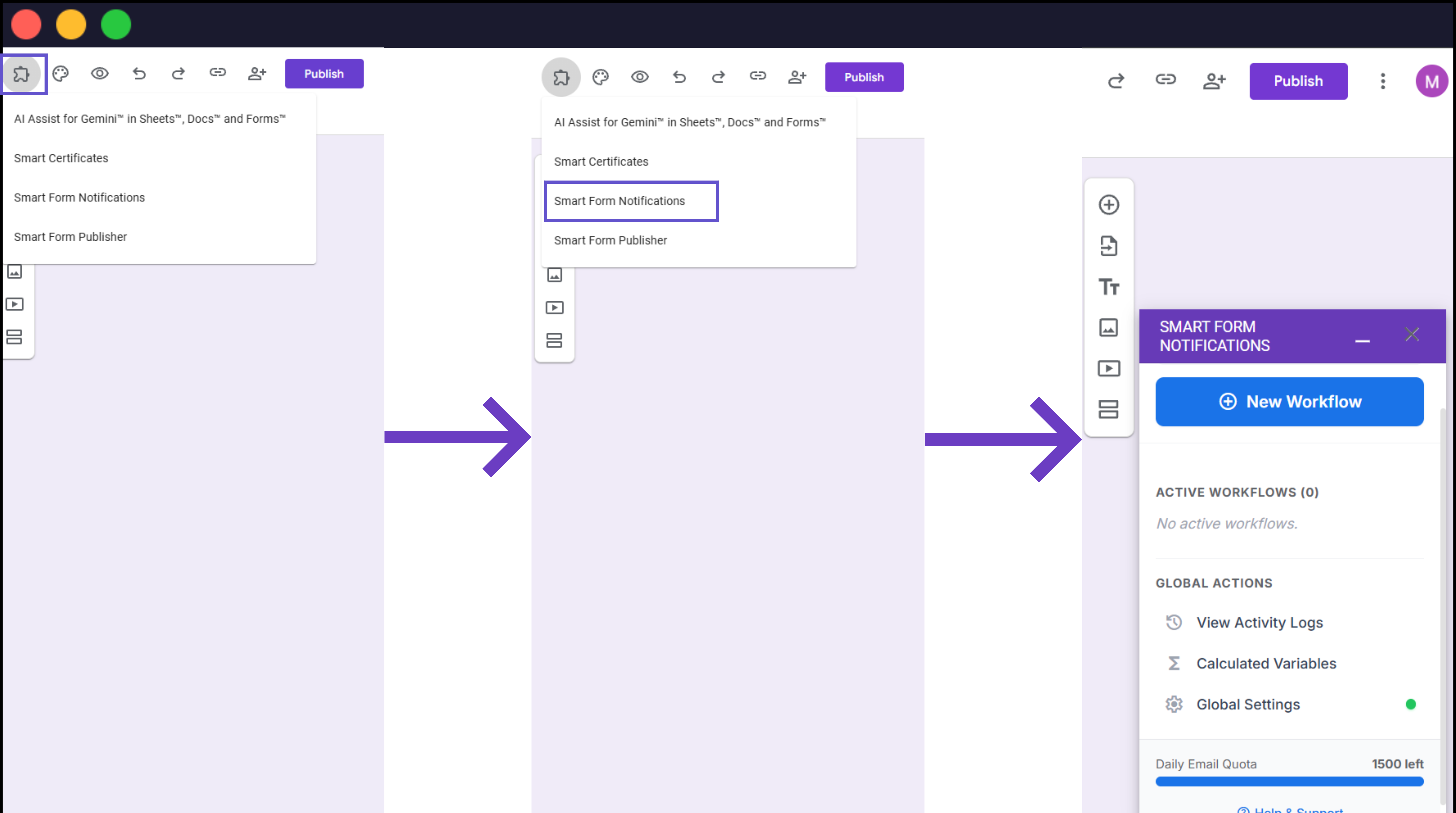
Screenshot: Google Forms UI highlighting the puzzle icon and menu option.
Navigation Overview
Once the sidebar opens on the right side of your screen, you will see several key areas:
Active Workflows
Lists all your currently configured automations, showing their name and the last time they were run.
New Workflow Button
Use this prominent button to start building a new notification set from scratch.
Global Actions
Contains links to View Activity Logs for monitoring performance and Global Settings for managing the master trigger.
Quota Tracker
A progress bar at the bottom displays your remaining daily email quota based on your current plan.
Troubleshooting: Sidebar Not Loading?
If the sidebar appears blank or stuck on a loading screen, it is likely due to Multiple Google Account Login issues. This is a common Google Workspace limitation.
Solution A: Sign Out
Sign out of all Google accounts and sign back in using only the account you wish to use with the add-on.
Solution B: Incognito
Open the form in an Incognito/Private window and sign in there. This isolates your session.